
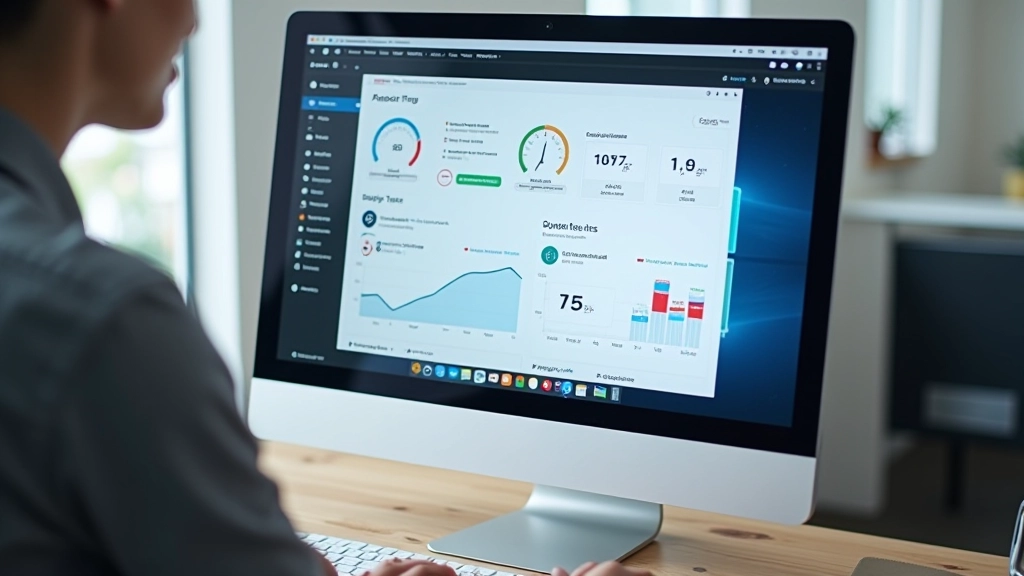
Why Your WordPress Site Is Slow And How To Fix It
Performance issues cost you visitors. We identify the three main culprits killing your site speed and show you exactly how to fix them.
Read ArticleA step-by-step approach to creating a custom theme. We cover the file structure, template hierarchy, and how to avoid common pitfalls that slow down development.

Most people grab a theme from the WordPress marketplace and call it done. But here’s the thing — those themes are bloated. They’re loaded with features you’ll never use, extra CSS you don’t need, and JavaScript that slows everything down. When you build a custom theme, you control exactly what goes in. Nothing more, nothing less.
We’re talking about a leaner site. Faster load times. Better performance scores. And honestly, you’ll understand your own code way better than trying to modify someone else’s 50,000-line theme. It’s not as complicated as you think — we’ll walk through it together.

Every WordPress theme needs specific files to work. Let’s break down what goes where.
Your theme folder needs at least two files to function: style.css and index.php. That’s the bare minimum. But if you want it to actually do something useful, you’ll need more. Think of style.css as the heart — it contains your CSS and the theme header information that tells WordPress who you are and what version you’re on.
The index.php file? That’s your fallback template. WordPress uses it when it can’t find a more specific template. You’ll also want functions.php — this is where you add custom functionality, register scripts, and set up theme support. Don’t put all your code in there though. It gets messy fast.

WordPress doesn’t just randomly pick a template. It follows a specific order — the template hierarchy. When someone visits your site, WordPress looks for templates in this order: the most specific template first, then gradually falls back to more general ones.
Let’s say someone visits a single blog post. WordPress checks for single-{post-type}.php first. If that doesn’t exist, it looks for single.php. Still nothing? It uses index.php. Understanding this order saves you tons of headaches. You don’t need a template file for every scenario — you can create just the ones you need and let WordPress handle the rest.
“Most developers create too many template files. Focus on the ones that actually need custom styling first, then add more only when necessary.”
WordPress hooks are the secret weapon for clean, maintainable code. There are two types: actions and filters. Actions let you insert your code at specific points in the WordPress lifecycle. Filters let you modify data before it gets displayed. The difference is subtle but important.
Don’t hardcode things directly into your templates. Use hooks instead. This keeps your code modular and means you can change behavior without touching multiple files. For example, instead of adding custom code directly to footer.php, use wp_footer hook. This way, your code stays in functions.php where it belongs.
wp_head — fires in the header, perfect for scripts and meta tags. wp_footer — runs at the bottom of every page. the_content — filters post content. wp_enqueue_scripts — where you load CSS and JavaScript. These four hooks handle most of what you’ll need.
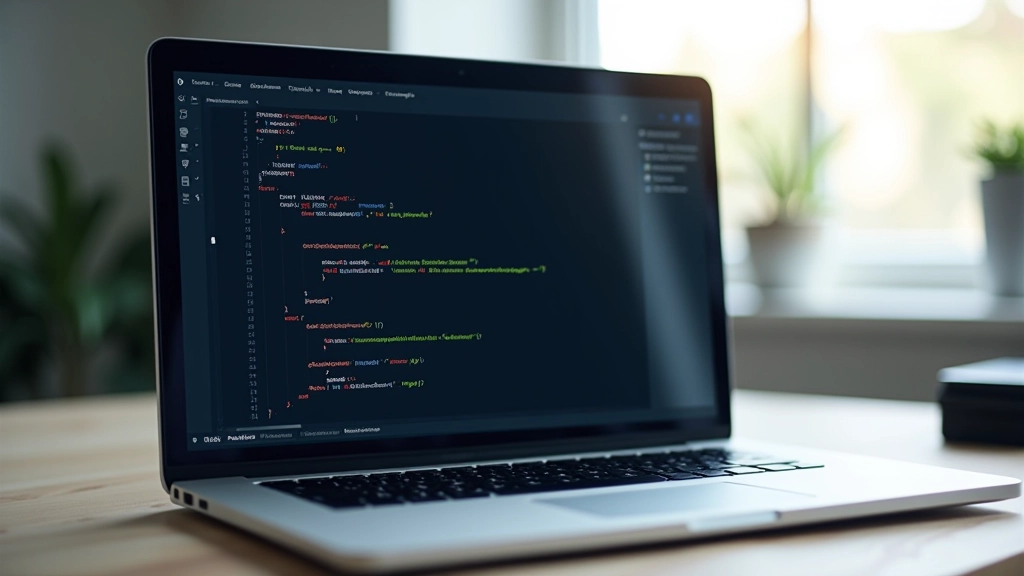

Here’s where most custom theme developers trip up. They build something that works but doesn’t load fast. A few mistakes can tank your performance score. The biggest culprit? Loading too many scripts. You don’t need a library for everything. Vanilla JavaScript can do most of what you think requires jQuery.
Minify your CSS and JavaScript. Use image optimization. Don’t load Google Fonts on every page — load them conditionally. Cache aggressively. These aren’t fancy optimizations — they’re table stakes. A well-built custom theme typically loads 40-50% faster than a bloated premium theme because you’re not carrying dead weight.
Here’s how to actually build a custom theme without pulling your hair out.
Start with the essential files we covered. Set up css, js, and images folders. Keep things organized from day one.
Get header.php and footer.php working first. These are used on every page, so test them thoroughly before moving on.
Build index.php for archives and single.php for individual posts. Test with actual content to make sure everything displays correctly.
Write your CSS. Keep it organized. Then optimize everything — compress images, minify code, test performance on real devices.
Building a custom WordPress theme isn’t some magical skill reserved for experts. You understand the basic structure now. You know which files you need. You’ve got the hooks and template hierarchy down. The rest is just practice. Start simple. Build something small that works. Then add complexity as you need it.
The advantage of a custom theme is massive — you control every line of code, your site performs better, and you actually understand what’s happening under the hood. That’s worth the effort.
Ready to dive deeper into WordPress optimization?
Explore More ResourcesThis article provides educational information about WordPress theme development. Requirements and best practices may vary depending on your specific hosting environment, WordPress version, and project scope. Always test thoroughly on your development environment before deploying to production. We recommend consulting WordPress documentation and following current security guidelines when building custom themes. Individual results will depend on your implementation, server configuration, and content management practices.
Performance issues cost you visitors. We identify the three main culprits killing your site speed and show you exactly how to fix them.
Read Article
Too many plugins slow everything down. We break down which ones deliver real value and which ones you should delete today.
Read Article
Most site owners ignore their database until it breaks. Learn how regular cleanup and optimization can dramatically improve performance.
Read Article