
Essential Plugins vs Bloated Ones: What You Actually Need
Too many plugins slow everything down. We break down which ones deliver real value and which ones you can replace with code — saving you money and improving performance.

The Plugin Problem
Here’s what happens to most WordPress sites: you start with a solid installation, add a few plugins, and suddenly you’ve got 47 of them running. You’re not sure what half of them do anymore. Your site takes 4 seconds to load instead of 1.5. And you’re paying for hosting that’s struggling to handle the bloat.
The thing is, not all plugins are created equal. Some are genuinely useful. Others? They’re doing things you could handle with a few lines of code. We’re going to help you figure out which is which. By the end of this, you’ll know exactly which plugins are worth keeping and which ones are dragging you down.

The Essential Category: Plugins Worth Keeping
These solve real problems that WordPress doesn’t handle natively. They’re lightweight, well-maintained, and you genuinely can’t replace them with code without significant effort.
Security & Backup
Wordfence or Jetpack for security monitoring. Backup plugins like UpdraftPlus handle daily backups automatically. These aren’t luxuries — they’re insurance. A compromised site or lost data costs way more than the plugin’s footprint.
SEO Fundamentals
Yoast SEO or Rank Math. You’ll want one for XML sitemaps, meta management, and readability checks. They’re heavier than code, but they provide features that’d take custom development to replicate properly.
Form Handling
WPForms or Gravity Forms. Building custom contact forms means handling validation, sanitization, and email delivery. A good form plugin handles all that securely. You’re paying for reliability here.
Cache & Performance
WP Super Cache or LiteSpeed Cache. These dramatically reduce server load by storing static versions of your pages. The performance gain justifies the small overhead. Most sites see 30-50% faster load times.
The Bloated Category: What to Replace or Remove
These plugins do things that either WordPress handles natively, or you can handle with a bit of custom code. They’re often slow because they’re trying to be everything to everyone. Removing them usually speeds up your site noticeably.
Social Media Plugins
Most social sharing plugins are unnecessary. You can add buttons with simple HTML and CSS. If you need social feeds, load them asynchronously so they don’t block page rendering.
Related Posts
A few lines of PHP in your theme query posts with the same category or tags. You don’t need a plugin for this. Custom code runs once and caches; plugins re-query the database every page load.
Image Optimization
Smush or ShortPixel sound great, but they add processing overhead. Better approach: optimize images before uploading using free tools like TinyPNG. Or use a CDN that handles optimization automatically.
Widget Management
Most widget plugins add nothing you can’t do with native WordPress widgets. The few advanced features they offer aren’t worth the added database queries.

How to Audit Your Plugin List
Follow these steps to identify which plugins are actually earning their place on your site.
List Every Plugin
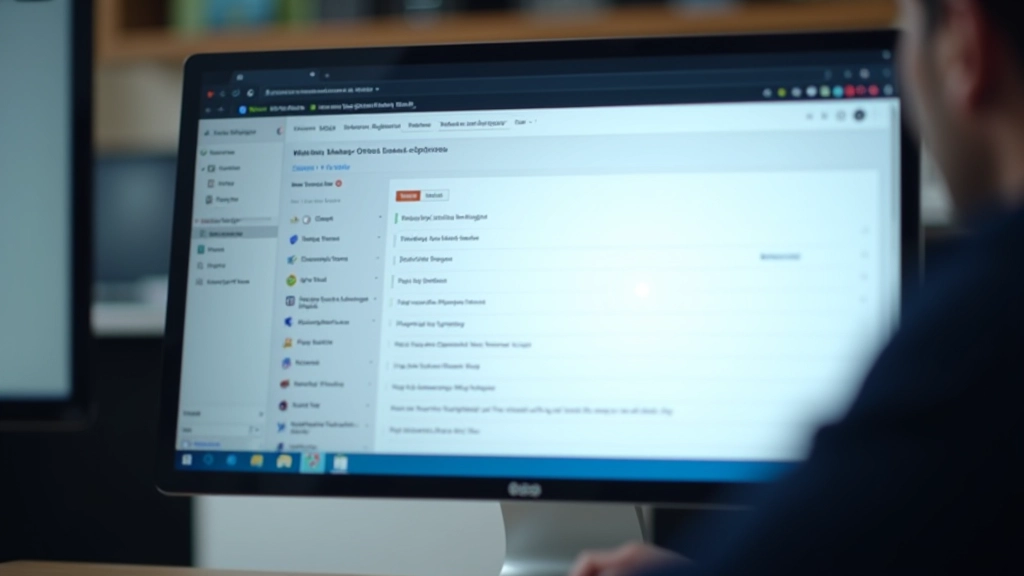
Go to your WordPress admin and screenshot your plugins page. You’ll be surprised at what you’ve accumulated. Some sites have inactive plugins that’ve been there for years.
Check Last Update Date
Plugins not updated in 6+ months are concerning. WordPress updates frequently, and outdated plugins become security risks. If it’s not maintained, remove it.
Test Removal (Staging First)
Don’t do this on live. Use a staging environment. Disable one plugin at a time, test your site, and measure load time. If nothing breaks and speed improves, it’s a candidate for permanent removal.
Use Performance Tools
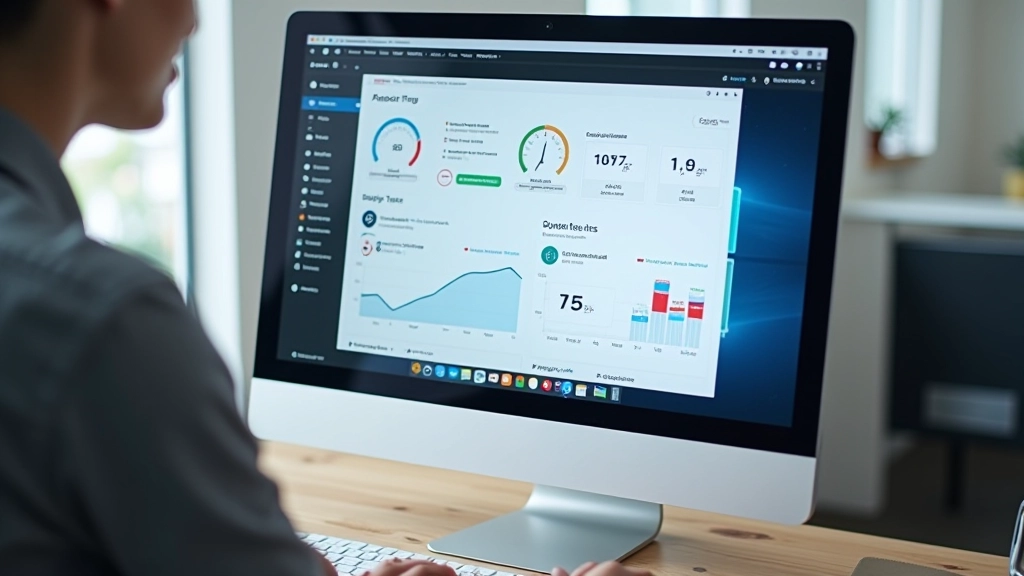
Query Monitor (free plugin) shows exactly what each plugin is doing. You’ll see database queries, PHP execution time, and HTTP requests. Some plugins cause way more overhead than they should.
When Custom Code Beats Plugins
Sometimes a plugin-free solution is faster. Here’s when you should go custom instead of reaching for another plugin.
Custom Post Types & Taxonomies
A simple custom post type registration needs maybe 20 lines of code in functions.php. A plugin does the same thing but with extra UI you’ll never use. Code wins on speed every time.
Simple Database Queries
Need to display posts from a specific category? That’s a few lines of PHP using get_posts(). You don’t need a plugin for this. Custom code executes faster and you control caching.
Custom Hooks & Filters
WordPress is built on hooks. Most functionality can be added through functions.php. This keeps everything in one place and eliminates the plugin-loading overhead.

The Final Verdict
You probably don’t need 47 plugins. Most sites run fine with 8-12 well-chosen ones. The goal isn’t to have zero plugins — it’s to have the right ones. Keep security, backups, and SEO. Remove social fluff and redundant functionality. Test everything in staging before you make changes live.
Start with an audit. Remove the obvious bloat. Measure the speed improvement. You’ll be surprised how much faster your site feels with less code running behind the scenes.
Related Articles

Important Disclaimer
This article is for informational purposes and reflects best practices in WordPress optimization. Plugin performance and compatibility varies based on your specific setup, hosting environment, and WordPress version. Always test changes in a staging environment before applying to your live site. Plugin recommendations are based on general use cases — your specific needs may differ. We’re not responsible for any issues that arise from removing or adding plugins. When in doubt, consult with a WordPress developer familiar with your site’s configuration.